The Best macOS Tahoe Apps in 2026: 9 Utilities That Fix What Liquid Glass Forgot
macOS Tahoe is the best-looking version of macOS in a decade. And it still ships with friction Apple hasn't bothered to fix. If you're hunting for the best macOS Tahoe apps to smooth those edges, this is the short, honest list I actually use: nine small utilities, every one of them either free and open source or a one-time purchase. No subscriptions you'll forget to cancel, no filler.

Best macOS Tahoe apps 2026 — nine essential Mac utility apps
Here's who this is for. If you're on an M-series Mac, you've updated to Tahoe, and the new Liquid Glass look is lovely but a few daily annoyances are getting under your skin… The smeared transparent menu bar, the dead notch, the missing clipboard history. These are the fixes. If you're perfectly happy with stock macOS and don't want extra apps in your menu bar, you can close this tab now. Everyone else, read on.
I've kept it to nine because that's how many genuinely earn their place. None of them will change your life on their own. Stacked together, they make the Mac get out of your way. Which is the whole point.
The best macOS Tahoe apps at a glance
| # | App | What it fixes | Price | Best for |
|---|---|---|---|---|
| 1 | Thaw | Cluttered, smeared menu bar | Free (open source) | Anyone with a notched MacBook |
| 2 | NotchNook | Wasted space around the notch | Subscription or lifetime licence | Turning the notch into a tool |
| 3 | Supercharge | Dozens of missing macOS basics | One-time purchase | Power users who want it all |
| 4 | LocalSend | AirDrop to Windows/Android | Free (open source) | Cross-platform file transfers |
| 5 | Maccy | No clipboard history | Free (open source) | Writers, coders, researchers |
| 6 | Yoink | Dragging files one at a time | One-time purchase | Gathering files from everywhere |
| 7 | Shottr | Slow, basic screenshots | Free trial, then ~£10 one-time | Annotation, OCR, pixel measuring |
| 8 | LM Studio | Sending data to cloud AI | Free (personal use) | Private, on-device AI |
| 9 | Pearcleaner | Leftover junk from deleted apps | Free (open source) | Keeping your Library tidy |
Part I: Taming Liquid Glass
1. Thaw — fixes the transparent menu bar
The new transparent menu bar looks great in a screenshot and turns to soup the moment your icons stack up against a busy wallpaper.
Thaw is the fix: a free, open-source menu bar manager. If you remember Ice, think of Thaw as its spiritual successor. Ice's development slowed right when Tahoe needed it most, and Thaw picked up the torch. The clever bit for notched MacBooks is a dedicated bar that relocates your hidden icons below the notch rather than letting them disappear behind it. You hide the clutter, the essentials stay one glance away, and it costs nothing. For an app that quietly solves one of Tahoe's most-complained-about changes, it's the easiest install on this list.
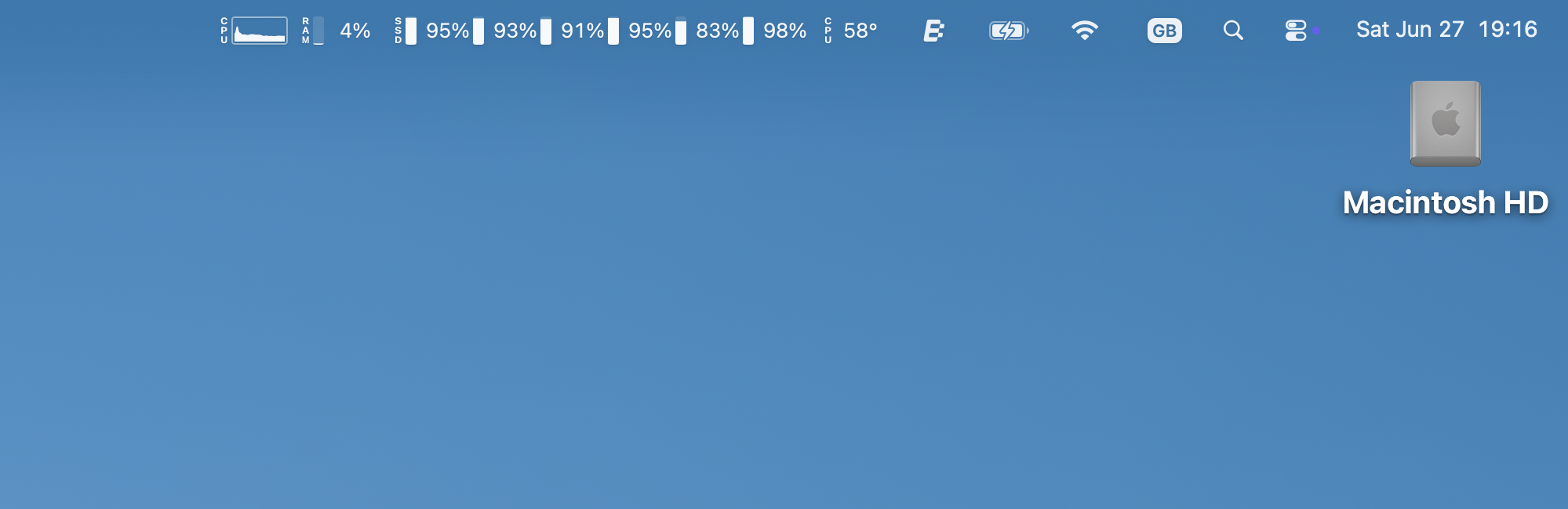
Before installing Thaw, a messy list of items
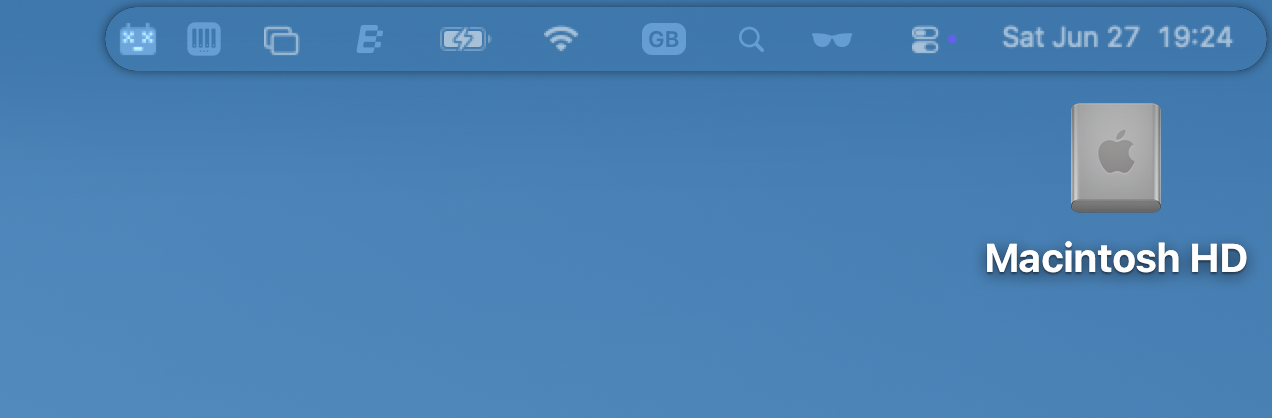
After installing Thaw, only essentials shown, saving space. As you hover the mouse, more items appear.
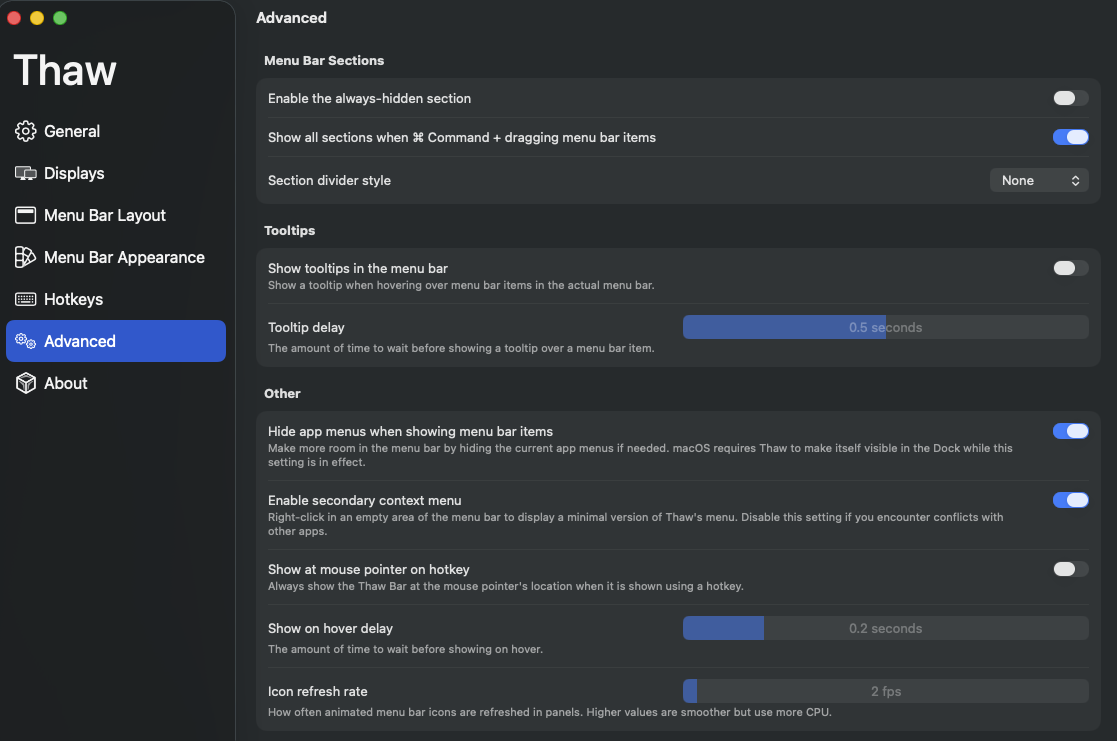
Thaw menu bar manager - Settings Panel
2. NotchNook — turns the notch into a shelf
The notch is still mostly dead space, and NotchNook is still the best way to wake it up.
The core trick is unchanged: that black bar becomes a temporary shelf. Drag a file into the notch, switch apps, pull it back out — no Command-Tab dance. What's new since I last wrote about it is genuinely useful rather than just more clutter: a proper media widget with album art, calendar live activities, and an instant webcam preview for checking your hair before a call.
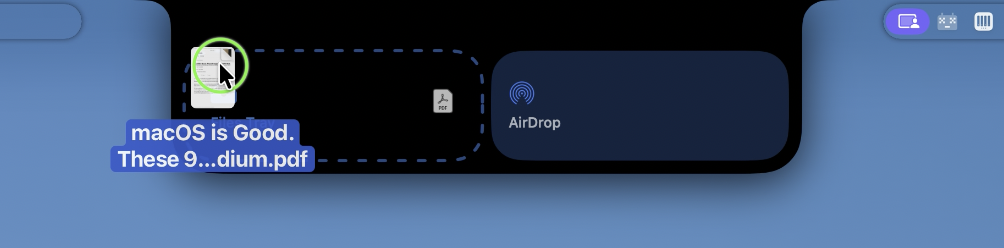
NotchNook turning the MacBook notch into a file shelf and media widget
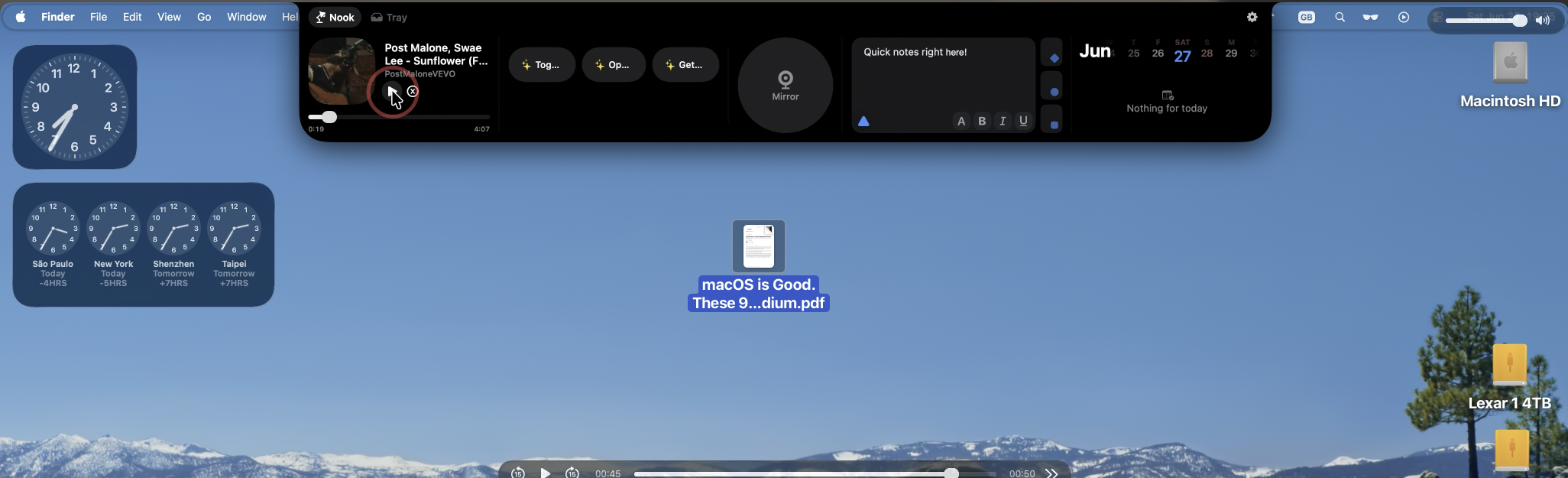
NotchNook turning the MacBook notch into a file shelf and media widget
One honest caveat. The pricing has drifted toward a subscription, though there's a lifetime licence if, like me, you'd rather pay once and forget about it. Worth knowing before you commit. And if the subscription stings, Alcove is a lighter take on the same idea.
3. Supercharge — the dozens of fixes Apple never shipped
If I could keep only one app here, it might be this one, because it's secretly about thirty apps in a trench coat.
Supercharge comes from Sindre Sorhus, an indie developer with a long, trusted track record, and it's a box of the quality-of-life fixes macOS has always lacked. Cut and paste files in Finder with Cmd-X like a normal person. Auto-install a DMG in one click. Clear every notification with a shortcut. Right-click any file straight to AirDrop. Toggle dark mode with a hotkey. Each one is small; together they make Tahoe feel like the OS it should have been out of the box. It's a one-time purchase. The feature list is overwhelming, so switch on the five you'll actually use and ignore the rest.
Part II: Moving Data Around
4. LocalSend — AirDrop for the rest of the world
AirDrop is wonderful right up until you need to send a file to a Windows laptop or an Android phone, at which point it simply ceases to exist. I know Apple promised to improve this in MacOS27 but if you don’t want to wait, this is worth a try!
like Blip I previously shared, LocalSend is another free, open-source app that closes the Airdorp gap. It's cross-platform, Mac, Windows, Android, and yes, Linux too! And it does one thing brilliantly: pick a device on your network, drag the file across, done. No account, no cloud middleman, no daft size limit. Because it's open source and stays on your local network, it's the kind of tool I'm happy to recommend without a second thought.
5. Maccy — the clipboard history macOS still won't give you
In 2026, macOS still only remembers the last thing you copied. Doesn’t that drive you insane? Tahoe's Spotlight bolted on a clipboard history of sorts, but it's an afterthought stapled to search.
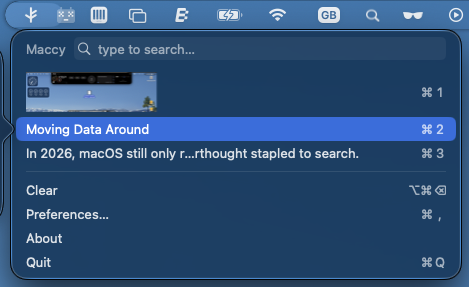
Maccy free clipboard manager showing copy history on macOS
Maccy is the proper fix, and it's free and open source. It lives in the menu bar, keeps a searchable history of everything you've copied: text, images, files, the lot! And it opens on a hotkey too. The detail I value most: it respects your password manager's "don't store this" rules, so your secrets don't quietly pile up in clipboard history. Lightweight, local, private, free. There's no reason not to.Oh, and it’s a one-off cost, at approximately 5 bucks. Bosh!
6. Yoink — a shelf for files in transit
This is the temporary-shelf idea taken to its polished conclusion, and it pairs beautifully with the habit NotchNook gets you into.
When you're gathering bits from five places: an image from the browser, a PDF from email, a clip from Finder… Yoink gives you a little shelf at the edge of the screen to stack them on. Grab everything first, then drag the whole pile wherever it's going in one move.

Yoink file shelf holding several files at the edge of a Mac screen
It's from Eternal Storms, a developer who clearly sweats the details, and it's a one-time purchase of a few pounds. I use it daily and forget it isn't built in.
(If you're reading this far, you're exactly the sort of person who'd get something out of my newsletter — more on that at the end.)
Part III: Capture & Local Intelligence
7. Shottr — screenshots that actually do work
If you take a lot of screenshots — and on a Mac, you do — the built-in tool is fine, and Shottr is better in every way that matters.
Shottr is tiny, built specifically for Apple silicon, and fast enough that the capture feels instant. Beyond clean annotation, it does the three things I lean on constantly: pull text straight out of any image with built-in OCR, measure pixel distances between UI elements (a lifesaver when you're checking spacing), and blur sensitive info before a grab leaves your desk. It's free to try, then a one-time licence of around £10. For what it saves me, that's not a decision.
If you also need scrolling captures of entire web pages and proper screen recording, CleanShot X is the heavier, paid-once alternative that's worth the money, but I will review that in a future article.
8. LM Studio — private AI that never leaves your Mac
If you want AI without handing your data to the cloud, the tools have got far friendlier: and LM Studio is where I send anyone who wants local AI without touching a terminal.
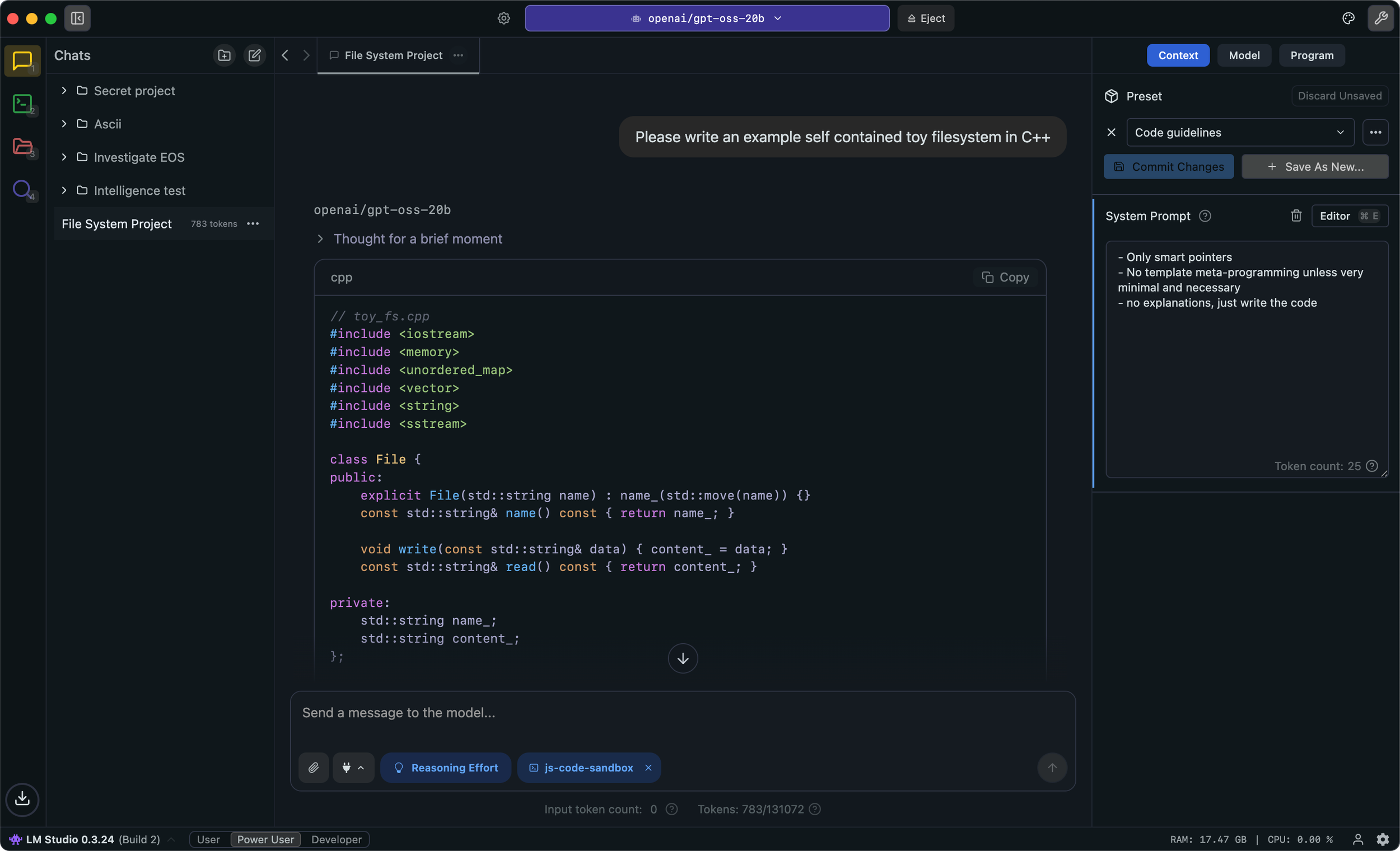
LM Studio running a local AI model privately on an Apple silicon Mac. Source: LM Studio website
It's a clean desktop app: browse models, see at a glance which ones your RAM can handle, download with one click, and chat. On Apple silicon it supports MLX-format models, which run noticeably faster than the older backend. Everything stays on your machine — no account, no data leaving the building — which is exactly what you want for anything you can't paste into a public chatbot. It's free for personal use. If you live in the terminal, Ollama is the scriptable sibling running underneath a lot of this.
9. Pearcleaner — sweep up after deleted apps
We'll finish with hygiene, because Tahoe didn't fix this either.
Delete an app the normal way and it leaves a trail of caches, containers and preferences cluttering your Library. The big paid "cleaner" suites love to frighten you about this. Pearcleaner is the tiny, open-source alternative that just handles it, and it's been kept current with recent macOS releases. Its Sentinel mode watches your Trash, so when you drag an app to delete it, Pearcleaner offers to sweep the leftovers too. Clean, fast, free, and it doesn't treat you like an idiot.
Do be careful though as it is a pretty powerful tool, so my rule of thumb here applies: If I don’t know what it is or what it does, then I leave it alone and don’t delete it.
The verdict: which ones are non-negotiable
If you install nothing else, install these three: Thaw to fix the menu bar, Maccy for clipboard history, and Supercharge for everything Apple forgot. All three solve problems you hit every single day, and two of them are free.
From there it's about your work. Shoot a lot of screen content? Add Shottr. Live across Mac, Windows and Android? LocalSend is essential. Care about privacy with AI? LM Studio. NotchNook and Yoink are the lovely-to-haves that you'll wonder how you lived without after a fortnight. But be clear-eyed about NotchNook's subscription before you buy.
The honest bottom line: this isn't a stack that makes your Mac more powerful. It's a stack that removes friction Tahoe's gorgeous new coat of paint left behind, until the machine finally gets out of your way.
FAQ
What are the best free apps for macOS Tahoe? For most people the highest-value free picks are Thaw (menu bar), Maccy (clipboard history), LocalSend (cross-platform file transfer) and Pearcleaner (app cleanup). All four are open source, and together they fix four of Tahoe's most common annoyances without costing a penny.
Do these macOS Tahoe apps work on Intel Macs? Most do, but check each developer's page before installing. Some — Shottr in particular — are built specifically for Apple silicon and run best there. Tahoe is the last macOS version to support Intel Macs, so if you're on an older machine, lean toward the apps that explicitly list Intel support.
Will adding this many menu bar apps slow down my Mac? Not meaningfully. These are lightweight utilities, and macOS staggers background apps at login, so a handful of them adds barely a second to a usable startup. If your menu bar feels crowded, that's exactly what Thaw is for.
Are these Mac apps safe to install? The ones here come from established developers or are open source, which means the code can be inspected. The thing to watch is permissions: utilities like menu bar and window managers need accessibility access, which grants real system reach. Stick to known apps, download from the official site, and revoke access for anything you stop using.
Is there a free clipboard manager for Mac? Yes — Maccy. It's free, open source, lives in the menu bar, keeps a searchable history of text, images and files, and respects your password manager's privacy rules. It's the one I recommend first.
Before you go
Behind The Lenses is my weekly newsletter. This is the behind-the-scenes version of everything you just read. It's where I share the apps I'm testing before they make a video, the setups that didn't survive a real workweek, and what's coming up next. If a tightly curated stack like this is your thing, you'll feel at home there. Join Behind The Lenses on Substack →
You can also find me on YouTube and Instagram for the down-to-earth tech reviews, but the newsletter is where the good, unfiltered stuff lands first.